> ## Documentation Index
> Fetch the complete documentation index at: https://bruno-a6972042-reform-ai-docs.mintlify.site/llms.txt
> Use this file to discover all available pages before exploring further.
# Connect OpenAI
> Connect an OpenAI API key and select OpenAI models for Bruno AI.
Bruno AI is available from **v4.0.0** and higher. Turn it on under
**Preferences → AI → Configuration** before configuring a provider.
Bruno connects directly to OpenAI using your API key. AI requests are not routed through Bruno servers.
## Before you begin
You need an OpenAI API key. Create or manage keys in the [OpenAI API key settings](https://platform.openai.com/api-keys).
An OpenAI API key is different from a ChatGPT subscription. Your OpenAI
account must have API access and sufficient credits or billing configured.
## Connect OpenAI
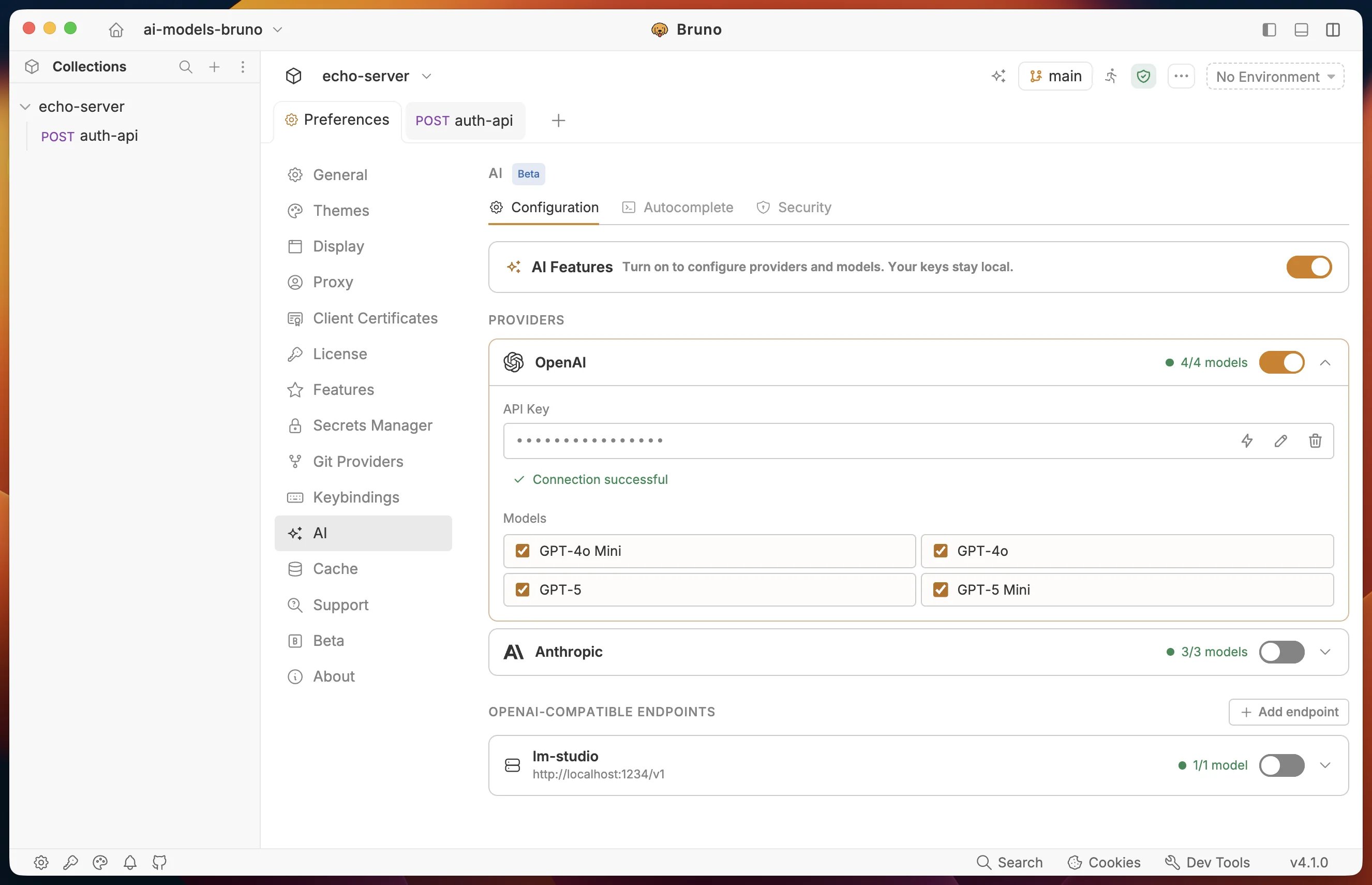
1. Open **Preferences** from the bottom-left corner of Bruno.
2. Go to **AI → Configuration**.
3. Turn on **AI Features** if it is not already enabled.
4. Under **Providers**, expand **OpenAI**.
5. Enter your OpenAI **API Key**.
6. Click **Save**.
7. Toggle the **OpenAI** provider on.
After the key is saved, Bruno masks it in the interface.
 **Bruno never stores your API keys.**
The keys stay on your machine and are not written to collections or Git. Bruno saves them locally in the same application-data folder as `preferences.json`, and they never leave your machine except when Bruno talks to the provider you configured.
* macOS: `~/Library/Application Support/bruno/`
* Windows: `%APPDATA%\bruno\`
* Linux: `~/.config/bruno/`
## Select models
In the expanded OpenAI provider, use the checkboxes under **Models** to choose which models are available in Bruno.
Enabled models appear in model pickers for the AI Assistant and generation features. You can also choose a model for inline autocomplete under **Preferences → AI → Autocomplete**.
**Bruno never stores your API keys.**
The keys stay on your machine and are not written to collections or Git. Bruno saves them locally in the same application-data folder as `preferences.json`, and they never leave your machine except when Bruno talks to the provider you configured.
* macOS: `~/Library/Application Support/bruno/`
* Windows: `%APPDATA%\bruno\`
* Linux: `~/.config/bruno/`
## Select models
In the expanded OpenAI provider, use the checkboxes under **Models** to choose which models are available in Bruno.
Enabled models appear in model pickers for the AI Assistant and generation features. You can also choose a model for inline autocomplete under **Preferences → AI → Autocomplete**.
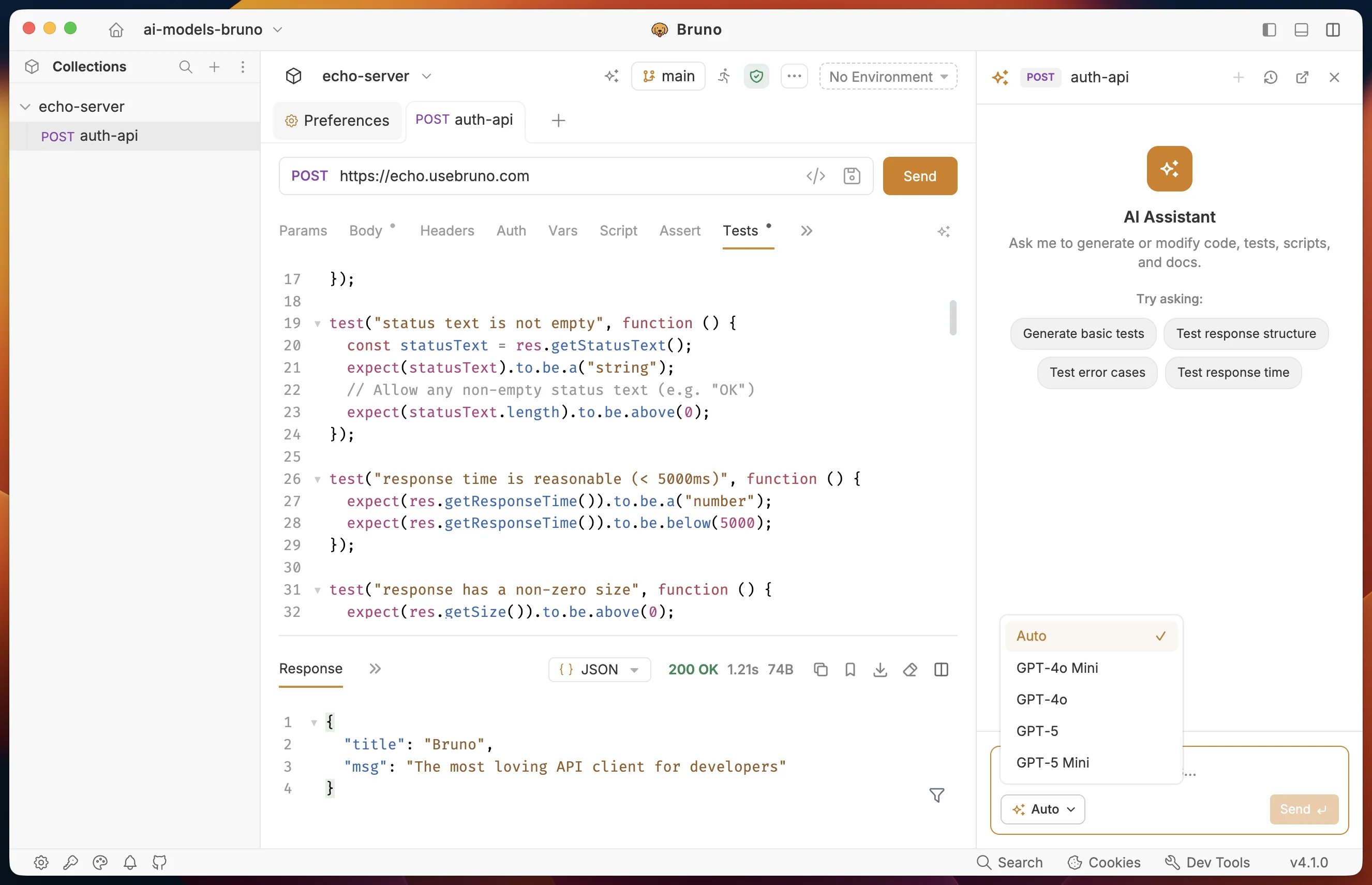 Use a faster, smaller model for inline autocomplete and a more capable model
for chat or generating complete tests and scripts.
## Test the connection
After enabling the provider, click **Test connection** (the bolt icon) next to the saved API key.
* **Connection successful** means Bruno can authenticate with OpenAI.
* If the test fails, review the error and check the troubleshooting steps below.
## Replace or remove the API key
Expand **OpenAI**, then use:
* **Replace key** (pencil icon) to save a different key
* **Remove key** (trash icon) to delete the saved key
Removing the key disables access to OpenAI until another valid key is saved.
## Troubleshooting
### Authentication failed
Confirm that the complete API key was copied without leading or trailing spaces. If necessary, create a new key in the OpenAI dashboard and replace the existing key in Bruno.
### Quota or billing error
Check API billing and usage in your OpenAI account. A ChatGPT plan does not automatically include OpenAI API credits.
### Models do not appear
Make sure:
1. The API key has been saved.
2. The OpenAI provider is enabled.
3. At least one model is selected under **Models**.
### AI features remain unavailable
Confirm that the main **AI Features** toggle is enabled under **Preferences → AI → Configuration**.
## Next steps
* [Connect Anthropic](/ai/bruno-ai/anthropic)
* [Connect a custom AI provider](/ai/bruno-ai/custom-providers)
* [Configure autocomplete and security](/ai/bruno-ai/configuration)
* [Use Bruno AI](/ai/bruno-ai/usage)
Use a faster, smaller model for inline autocomplete and a more capable model
for chat or generating complete tests and scripts.
## Test the connection
After enabling the provider, click **Test connection** (the bolt icon) next to the saved API key.
* **Connection successful** means Bruno can authenticate with OpenAI.
* If the test fails, review the error and check the troubleshooting steps below.
## Replace or remove the API key
Expand **OpenAI**, then use:
* **Replace key** (pencil icon) to save a different key
* **Remove key** (trash icon) to delete the saved key
Removing the key disables access to OpenAI until another valid key is saved.
## Troubleshooting
### Authentication failed
Confirm that the complete API key was copied without leading or trailing spaces. If necessary, create a new key in the OpenAI dashboard and replace the existing key in Bruno.
### Quota or billing error
Check API billing and usage in your OpenAI account. A ChatGPT plan does not automatically include OpenAI API credits.
### Models do not appear
Make sure:
1. The API key has been saved.
2. The OpenAI provider is enabled.
3. At least one model is selected under **Models**.
### AI features remain unavailable
Confirm that the main **AI Features** toggle is enabled under **Preferences → AI → Configuration**.
## Next steps
* [Connect Anthropic](/ai/bruno-ai/anthropic)
* [Connect a custom AI provider](/ai/bruno-ai/custom-providers)
* [Configure autocomplete and security](/ai/bruno-ai/configuration)
* [Use Bruno AI](/ai/bruno-ai/usage)